





Your Health Magazine Contributor
4201 Northview Drive
Suite 102
Bowie, MD 20716
More Health Technology Articles
How to Create Clear AI-Generated Patient Education Videos
A short education clip can become confusing when it tries to explain too much. The narrator introduces several ideas, the screen fills with labels, and the viewer has to decide whether the message is general information or an instruction about their own care.
Health educators can avoid that problem by choosing a narrow communication task and defining its limits before production. A clip might introduce an appointment checklist, explain the layout of an educational handout, or show staff where an approved information resource belongs. Its purpose is to make wording easier to understand, without adding diagnosis, treatment advice, or promises about health outcomes.
Choose a topic that can stay educational
Begin with material that the organization has already approved. Identify the exact message the clip should communicate and the source document that supports it. Do not ask a video generator to supply missing health information or turn a broad topic into advice.
A hypothetical clinic might want a clip encouraging patients to write down questions before an appointment. The visual task is modest: show a notebook, a person writing, and an approved closing message. The scene need not depict symptoms, suggest a diagnosis, or recommend a treatment.
Administrative education can also fit this format. A clip might show where a visitor can find a printed resource or introduce an existing clinic guide. Use actual approved procedures when describing a real organization; do not invent opening hours, access arrangements, or services.
Keep the intended audience clear. Patient-facing material should use familiar words. Staff training may use established internal terminology, but it still needs a defined objective and approved wording.
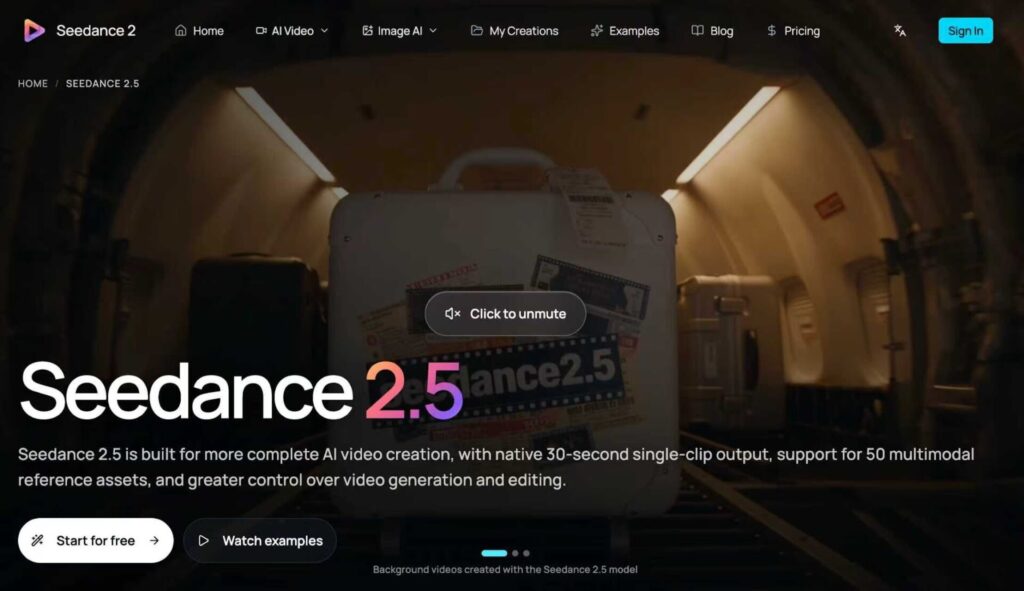
Short-form AI video tools can help health educators create simple illustrative scenes from an approved script. For example, this AI video tool supports short continuous video generation that could be used for a narrowly defined educational scene. Whatever platform is used, the organization should keep the message focused on one educational purpose and have the final wording reviewed before publication.
Write the script before selecting the visuals
Draft the words as a short spoken explanation. Put the main point first, then include only what the viewer needs to understand it. A video should not become a compressed version of a long handout with every sentence read aloud.
For the appointment example, a draft might say: “Before your appointment, you can write down the questions you want to ask. Keep the list somewhere you can find it. Bring it with you so you can refer to it during the conversation.” This is a hypothetical communication example, not an instruction specific to a clinic or patient.
Ask the organization’s reviewer to approve the wording before generation. Check whether a sentence could be interpreted as a promise or an individualized recommendation. “This list will prevent mistakes” makes a stronger claim than the example supports and should be removed.
Read the script aloud at a calm pace. If the speaker needs to hurry, reduce the message or allow a longer format. Do not assume a short AI explainer video must use every available second.
Show the message without implying clinical authority
Choose visuals that support the approved text directly. A notebook scene can show someone writing a few questions and placing the notebook beside a bag. A resource-location clip can show a clearly labeled information shelf, if that reflects the organization’s real setup.
Avoid adding an examination room, a clinician in uniform, or a medical device simply to make the scene appear authoritative. Those details can imply services, recommendations, or relationships that the script never established.
For illustration, use fictional people and nonidentifying materials. A blank notebook or generic page is sufficient for the appointment example. There is no need to upload a patient record, a real appointment letter, or a photograph taken during care.
Keep backgrounds quiet and actions easy to follow. A calm visual style comes from stable framing, restrained movement, and enough time to see the object being discussed. It does not require claims about the viewer becoming calmer or healthier.
Use generation for production, not content approval
A prompt for the hypothetical notebook scene could read: “One continuous illustrative shot in a neutral home setting. An adult sits at a table, writes a short question list in a notebook, then places the closed notebook beside a bag. Use soft, even lighting and a steady camera. Keep the notebook, pen, hands, and room consistent. Do not show medical records, medicines, clinical procedures, or readable personal information. End with the notebook clearly visible.”
The prompt describes a production task. It asks for no assessment of symptoms and no depiction of treatment. Add the approved narration and captions during finishing when exact wording matters, rather than relying on generated writing on the notebook page.
Review the educational wording in its final context
The brief’s accuracy review should focus on the educational wording and whether the visuals preserve its intended meaning. This is not a clinical assessment, and an attractive film cannot establish the truth of a care claim.
Compare the final narration and captions with the approved script word for word. Check that no sentence was added, shortened in a misleading way, or changed by automatic captioning. Look especially at negatives and qualifying words, because removing one can alter the message.
Then ask whether the scene suggests more than the script says. A person visibly recovering after an action could imply a benefit. A clinician endorsing an object could imply a recommendation. Remove those implications when they fall outside the approved educational purpose.
Have a second reviewer read the finished text without seeing the production prompt. The question is whether an ordinary viewer can understand the message and its scope from the clip alone.
Make the clip understandable without sound
Provide captions that match the approved narration. Use readable type, sufficient contrast, and a placement that leaves the relevant action visible. Preview the clip at the size people will actually see on a phone or embedded page.
Do not place the whole script on screen at once. Let captions follow the spoken explanation, with enough time for each passage to be read. When a label is necessary, use the same term used in the approved handout instead of introducing a new synonym.
A transcript can make the information available outside the video and gives reviewers another way to check the wording. If the organization publishes translated versions, have each version reviewed rather than assuming an automatic translation preserves the original meaning.
Give the finished resource an owner
Save the final script, approved source material, prompt, and clip together. Record who approved the educational wording and when it should be revisited. If the underlying handout changes, the video should be checked against the new version before continued use.
For the first clip, choose one small topic and test whether viewers can state its main message after watching. Use that feedback to improve wording and pacing, without presenting the exercise as evidence of better care or treatment outcomes.
A health education video leaves the viewer with one understandable piece of information. Keep the production that focused, and the clip can support an existing educational resource without taking on a clinical role.
FAQ
Q: How long can one Seedance 2.5 generation be for my educational clip?
A: Up to 30 seconds. Seedance 2.5 supports continuous generation up to 30 seconds in one pass.
Other Articles You May Find of Interest...
- How to Evaluate a HIPAA-Compliant Healthcare Software Development Partner in 2026
- How to Create Clear AI-Generated Patient Education Videos
- The Smart Lab Revolution: How Next-Generation Equipment is Reshaping Research
- When Health Photos Won’t Upload: A Practical Guide to File Formats for Patients and Practices
- The Real Cost of an EHR: 6 Costs Beyond the License
- 5 Managed PACS Support Companies for Hospitals and Imaging Centres
- 5 QR Code Generators for Hospitals, Clinics, and Health Information