






Your Health Magazine Contributor
4201 Northview Drive
Suite 102
Bowie, MD 20716
More Health Technology Articles
When Health Photos Won’t Upload: A Practical Guide to File Formats for Patients and Practices
A patient takes a photo of an insurance card, referral, medication list or other document on an iPhone and tries to upload it to a portal or send it to a healthcare office. The image looks normal on the phone, but the receiving system rejects it. In many cases, the problem is not the picture itself. It is the file format.
When a non-sensitive photo needs a more widely compatible format, Convertio’s heic to jpg converter transforms an HEIC image into a JPG file that can be opened by systems that do not support HEIC.
The same compatibility issue can affect other files used in healthcare communication and marketing. The Convertio Official Website converts files among more than 300 formats in a browser, which can help users create compatible copies of ordinary, non-confidential images, documents, audio or video when a destination requires a different file type.
Table of Contents
- Why File Formats Matter in Healthcare
- Why an iPhone Photo May Be an HEIC File
- What File Conversion Actually Changes
- Patient Uploads: Start With the Destination
- File Compatibility in a Healthcare Practice
- The Privacy Line Practices Should Not Cross
- Common File Formats at a Glance
- A Better File-Handling Checklist
- The Bottom Line

Why File Formats Matter in Healthcare
Digital communication now touches nearly every part of the patient experience. People may be asked to upload identification, insurance cards, referral paperwork, photographs, forms and other information before or after an appointment.
Healthcare practices have their own digital workflows. Staff members prepare patient-education materials, physician headshots, website graphics, newsletters, social media images, presentations and documents for community outreach.
All of those files have a format, usually identified by the letters after the period in a filename: .jpg, .png, .pdf, .heic and so on.
Most people never need to think about those extensions until a website, portal or software program refuses to accept one.
That creates an easily overlooked access problem. A patient may have exactly the information the practice requested but still be unable to submit it because the device that created the file and the system receiving it do not speak the same digital language.
A file-format error is different from a content error. Converting a file can make an existing image or document compatible with another system, but it does not correct inaccurate information, improve a poor-quality medical image or replace an original record.
Why an iPhone Photo May Be an HEIC File
Many iPhone users encounter this issue because newer Apple devices can save photographs using the High Efficiency Image File Format, or HEIF. Files commonly use the .HEIC extension.
According to Apple Support, HEIF provides better compression than JPEG while preserving comparable visual quality. That allows photos to take up less storage space.
The tradeoff is compatibility.
Modern devices and applications increasingly support HEIC, but some websites, older computers and specialized systems may still expect JPEG or another established format. Apple itself notes that JPEG and H.264 are more broadly compatible with other devices and operating systems.
That distinction matters when a photograph is moving from a patient’s personal device into a healthcare organization’s technology environment.
What File Conversion Actually Changes
Converting an image is not the same as changing the letters at the end of its filename.
A conversion tool reads the original file and produces another file encoded in the requested format. An HEIC-to-JPG conversion, for example, creates a JPEG version of the image that software capable of reading JPEG files can recognize.
There can be tradeoffs.
JPEG uses lossy compression, meaning some image data may be discarded when a file is encoded. A converted file can also differ in size from the original.
For routine administrative photographs, that difference may be irrelevant. For an image being used for clinical interpretation, diagnosis or another purpose where the original data matters, it may not be.
Keep the original file whenever image quality, documentation or future use could be important.
Patient Uploads: Start With the Destination
Before converting anything, find out what the receiving system actually accepts.
A patient portal might specify JPG, PNG or PDF. An insurance website may impose both file-type and file-size limits. A healthcare office may have a preferred way to receive documents.
A practical workflow is:
- Check the upload instructions. Look for accepted file extensions and size limits.
- Identify the original format. A file ending in
.HEICis different from one ending in.JPG, even if both appear to be ordinary photos. - Keep the original. Work from a copy rather than replacing the only version.
- Convert only when necessary. There is little benefit in changing formats when the receiving system already accepts the original.
- Open the converted file. Make sure text is legible and the entire document or image appears correctly.
- Upload through the method requested by the healthcare organization.
If the portal continues to reject the file after the format has been corrected, the problem may instead involve file size, dimensions, browser compatibility or the portal itself.
File Compatibility in a Healthcare Practice
The issue extends beyond patient uploads.
Healthcare practices routinely create and receive digital assets for administrative, educational and marketing purposes. A physician may send a professional photograph from an iPhone. A staff member may receive a logo from a community partner in an unfamiliar format. An educational graphic may need to work on both a website and social media platform.
A simple file standard can reduce unnecessary back-and-forth.
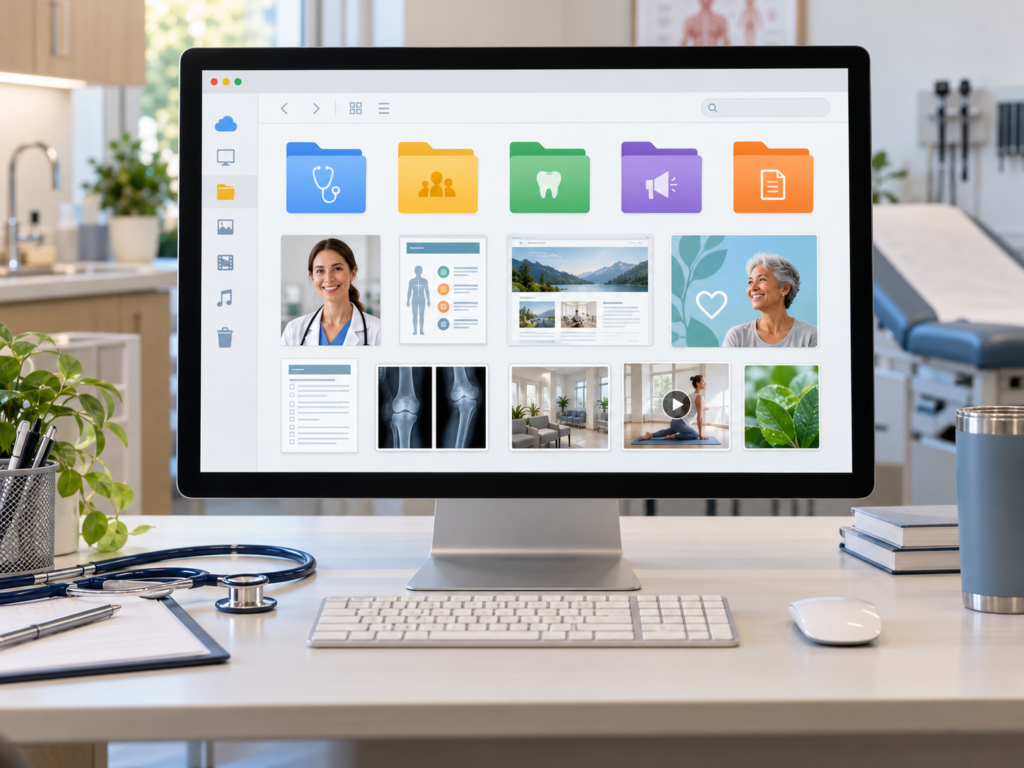
For example:
| Material | Common Useful Format | Why |
|---|---|---|
| Provider headshot | JPG | Widely supported and appropriate for photographic images |
| Website graphic | JPG or PNG | Broad browser compatibility |
| Logo with transparency | PNG | Can preserve transparent backgrounds |
| Patient handout | Helps preserve page layout | |
| Office form for viewing | Consistent appearance across many devices | |
| iPhone photograph | HEIC or JPG | HEIC saves space; JPG generally offers broader compatibility |
A practice does not necessarily need every employee to understand the technical details of image encoding. It does help to establish a few consistent rules for files that routinely move between staff members, patients, designers, printers, websites and social platforms.
That is particularly useful for small practices where the same office manager may handle patient communications one hour and marketing materials the next.
The Privacy Line Practices Should Not Cross
Convenience is not the only consideration when healthcare information is involved.
A photograph of an office event is very different from a photograph containing a patient’s name, insurance number, medical history, prescription information or other identifiable health information.
For healthcare organizations regulated by HIPAA, the distinction becomes especially important when a third-party cloud service processes electronic protected health information on the organization’s behalf.
The U.S. Department of Health and Human Services states that when a covered entity engages a cloud service provider to create, receive, maintain or transmit electronic protected health information on its behalf, the provider is generally a business associate and the parties must have an appropriate business associate agreement.
That means practice staff should not assume that an ordinary web-based file utility is approved for patient information simply because it is easy to use.
For healthcare practices: Use only organization-approved systems when a file contains protected health information or other confidential patient data. General-purpose conversion services are better reserved for ordinary, non-confidential materials unless the organization’s privacy and security requirements have been addressed.
Patients handling their own files are in a different position from a medical practice processing patient information, but privacy still deserves consideration. Insurance cards, prescriptions, laboratory reports and portal screenshots can expose highly personal information.
Common File Formats at a Glance
Understanding a few common formats can prevent many compatibility problems.
JPG/JPEG
Best known for photographs, JPEG is supported by an enormous range of websites, applications and devices. Its broad compatibility is one reason it remains useful when an image must move between different systems.
HEIC/HEIF
Designed for efficient storage of high-quality images. Common on Apple devices, but not every destination supports it.
PNG
Frequently used for graphics, screenshots, diagrams and images requiring transparency. PNG uses lossless compression but can create larger files than JPG for photographic content.
Well suited to forms, reports, handouts and multi-page documents because it can preserve the intended page layout across different devices.
The “best” format is therefore not universal. It depends on what the file contains and what needs to happen to it next.
A Better File-Handling Checklist
Whether you are a patient sending a document or a healthcare professional preparing digital material, ask these questions before converting:
- What file types does the receiving system accept?
- Does this file contain confidential or identifiable health information?
- Am I working from a copy rather than my only original?
- Does image quality matter for the intended use?
- Will conversion alter something that needs to remain exact?
- Does the converted file open correctly?
- Is every page, edge and line of text still visible?
- Is the file small enough to upload?
- Am I using the healthcare organization’s approved method for sensitive information?
These checks take less time than troubleshooting a rejected or unreadable file after it has already been sent.
The Bottom Line
File compatibility may seem like a minor technical issue, but it can interrupt communication between patients and healthcare organizations and create unnecessary work for practice staff.
The solution is not to convert every file automatically. Start with the destination, determine which format it requires and preserve the original whenever the information may matter later.
For healthcare practices, there is an additional boundary: ordinary marketing and administrative files can often be reformatted as needed, while patient information belongs within approved privacy and security workflows.
A little understanding of JPG, HEIC, PNG and PDF can prevent a surprisingly common digital roadblock—and help important information reach the right place in a usable form.
Other Articles You May Find of Interest...
- The Smart Lab Revolution: How Next-Generation Equipment is Reshaping Research
- When Health Photos Won’t Upload: A Practical Guide to File Formats for Patients and Practices
- The Real Cost of an EHR: 6 Costs Beyond the License
- 5 Managed PACS Support Companies for Hospitals and Imaging Centres
- 5 QR Code Generators for Hospitals, Clinics, and Health Information
- 5 FHIR Software Development Companies to Consider in 2026
- Pulsed Field Ablation Is Shaking Up the World of EP Therapy